---
title: XBRL Glossary
description: Confused by XBRL terminology? This glossary explains the key ESEF tagging terms in plain language — what they mean, what they look like in the tagger, and why they matter for your report.
---
[Skip to content](https://wrepit.net/help-center/xbrl-glossary#main-content)
English - United States
Show submenu for translations

Open main navigation
Close main navigation
- English - United States
Show submenu for translations
- Contact us
Contact us
Hi, how can we help you?
- There are no suggestions because the search field is empty.
1. [Help Center](https://wrepit.net/help-center?hsLang=en-us)
2. [XBRL](https://wrepit.net/help-center/xbrl?hsLang=en-us)
3. [Reference and troubleshooting](https://wrepit.net/help-center/xbrl?hsLang=en-us#reference-and-troubleshooting)
# XBRL Glossary
## This glossary covers the key XBRL and ESEF terms you’ll encounter while tagging with Drafts. We’ve kept the definitions practical — focused on what each term means for your work, not the full technical specification.
#### **Jump to:**
[XBRL & ESEF Fundamentals](https://wrepit.net/help-center/xbrl-glossary#xbrl-esef-fundamentals) • [Taxonomy](https://wrepit.net/help-center/xbrl-glossary#taxonomy) • [Tags & Tagging](https://wrepit.net/help-center/xbrl-glossary#tags-and-tagging) • [Timeframes](https://wrepit.net/help-center/xbrl-glossary#Timeframe-descriptions) • [Calculations & Values](https://wrepit.net/help-center/xbrl-glossary#calculation-and-values) • [Validation & Filing](https://wrepit.net/help-center/xbrl-glossary#validation-and-filing)• [Wrepit-Specific Terms](https://wrepit.net/help-center/xbrl-glossary#wrepit-specific) • [Key Concepts Explained](https://wrepit.net/help-center/xbrl-glossary#key-concepts)
---
#### **XBRL & ESEF fundamentals**
| **Term** | **Definition** |
| --- | --- |
| ESEF | European Single Electronic Format — the EU regulation requiring listed companies to publish annual reports in XHTML with XBRL tags (iXBRL). |
| iXBRL (Inline XBRL) | A format that embeds XBRL tags inside an HTML document, so the report is readable as a normal web page while also being machine-readable. |
| XBRL | eXtensible Business Reporting Language — a global standard for structuring financial data so it can be read by both humans and machines. |
| XHTML | The file format your final ESEF report is published in. It’s a web page with embedded XBRL tags. |
#### **Taxonomy**
| **Term** | **Definition** |
| --- | --- |
| Base Taxonomy | The official ESEF taxonomy published by ESMA (e.g., ESEF 2022, ESEF 2024). This is your starting point — you select it when setting up tagging. |
| Extension Prefix | The short identifier added in front of your company's extended tag names (e.g., "wrep:SalaryAndPersonnelCosts"). Set during taxonomy setup. Standard tags from the base taxonomy use "ifrs-full:" while your custom tags use your prefix |
| Extension Taxonomy | Your company’s custom additions to the base taxonomy. Created when the standard tags don’t cover a concept specific to your reporting. [→ See detailed explanation below.](https://wrepit.net/help-center/xbrl-glossary#extension-taxonomy-extended-tags) |
| LEI Code | Legal Entity Identifier — a unique 20-character code that identifies your company globally. Required when setting up your taxonomy. |
| Rollover | Transferring your previous year’s taxonomy (tags, settings, structure) to a new reporting period. Saves significant time for returning users. |
| Taxonomy | A standardized dictionary of tags (concepts) that define what each piece of financial data means. Think of it as the official list of labels you can use. |
| Taxonomy Package | The complete set of files that define your taxonomy, including the base taxonomy and any extensions. Included in the report package (zip file) you export from the Portal. |
#### **Tags and tagging**
| **Term** | **Definition** |
| --- | --- |
| Abstract | A structural grouping label in the taxonomy (e.g., “IncomeStatementAbstract”). Organizes tags into logical groups but cannot be applied to data — these are headings in the tag list, not tags you use. [→ See Key Concepts below.](https://wrepit.net/help-center/xbrl-glossary#abstract-elements) |
| Anchoring | The relationship between an extended tag and the base taxonomy. When you create an extended tag, you must anchor it to a wider tag (parent) and optionally to narrower tags (children). In the tagger you’ll see “wider anchor” and “narrower anchor.” |
| Block Tag | A tag applied to an entire section of text — a paragraph, a note, or a full chapter. Used in Word for narrative disclosures. [→ See Key Concepts below.](https://wrepit.net/help-center/xbrl-glossary#block-tag-inline-tag) |
| Complex Block Tag | A block tag that encompasses a large or nested section of content, often containing other tagged elements within it. The tagger warns you when inserting one because in many cases it's better to tag smaller sections individually and use continuation tags to link them. |
| Description Tag | A tag for accounting policy descriptions. Names start with "Description of accounting policy for..." Applied in Word to the sections where you explain your accounting policies. |
| Disclosure Tag | A tag for an entire financial statement note or a major section within a note. Names start with "Disclosure of..." and appear with "\[text block\]" in the tag list. Applied in Word as block tags |
| Extended Tag (wider & narrower) | A custom tag you create when no existing tag fits. Must be linked to a wider tag (a broader parent concept from the base taxonomy). Can optionally have narrower tags (more specific subcategories) underneath it. [→ See Key Concepts below.](https://wrepit.net/help-center/xbrl-glossary#extension-taxonomy-extended-tags) |
| Fact Value | The actual number, text, or data that a tag is applied to. When you tag “Revenue” and the cell contains 1,250,000 — the fact value is 1,250,000. |
| Inline Tag | A tag applied to a single value — one number or one short text element. This is what you do in Excel when tagging individual line items like Revenue or Total Assets. |
| Label | The human-readable name for a tag (e.g., “Revenue,” “Total Assets”). This is what you see and search for in the tagger. Each tag also has a technical name, but you work with labels. |
| Root Taxonomy Element | The top-level financial statement that a set of tags belongs to (e.g., “Income Statement,” “Balance Sheet,” “Statement of Changes in Equity”). |
| Tag (concept) | A label from the taxonomy that identifies what a piece of financial data represents (e.g., Revenue, Total Assets). Also called a 'concept' in official XBRL terminology – you'll see both terms used interchangeably in the add-in. |
| Technical Name | The machine-readable identifier for a tag, shown in the Item Details panel (e.g., “ifrs-full:Revenue”). |
| \[text block\] | A suffix you’ll see next to certain tags in the tag list. It means the tag is designed for narrative text (a section, paragraph, or note), not a single number. These are the tags you apply in Word. |
#### **Timeframes**
| **Term** | **Definition** |
| --- | --- |
| Duration | The official XBRL term for a period. You’ll see this badge in the Item Details panel — it means the same thing as “period.” |
| Instant | A single point in time (e.g., 31.12.2024). Used for stock items like total assets, equity — things measured at a specific date. [→ See detailed explanation below.](https://wrepit.net/help-center/xbrl-glossary#timeframes) |
| Period (Duration) | A date range (e.g., 01.01.2024–31.12.2024). Used for items that accumulate over time — revenue, expenses, cash flows. Think: “how much happened during this period?” Also called “duration” in official XBRL terminology. [→ See Key Concepts below.](https://wrepit.net/help-center/xbrl-glossary#timeframes) |
#### **Calculation & values**
| **Term** | **Definition** |
| --- | --- |
| Balance Type (Credit/Debit) | An XBRL attribute indicating the natural sign of a financial concept. Not the same as accounting debit/credit. The tagger handles this automatically. [→ See detailed explanation below](https://wrepit.net/help-center/xbrl-glossary#balance-type) |
| Calculation | A defined relationship between a total tag and its component line items. Tells the system which items add up to the total, so it can check the math. |
| Context | The combination of the reporting entity (your company) and the time frame (period or instant) for a tagged value. Built automatically from your taxonomy setup and time frame selections. |
| Item Type | Shown in the Item Details panel (e.g., “monetaryItemType,” “booleanItemType”). Tells you what kind of data the tag expects. [→ See detailed explanation below.](https://wrepit.net/help-center/xbrl-glossary#item-type) |
| Scale | The multiplier for a value (e.g., 3 = thousands, 6 = millions). Must match how the number appears in your report. Set as a default in your taxonomy and adjustable per tag. |
| Subtag (Dimension) | An additional qualifier that adds a layer of detail to a tag. While a tag identifies what is being reported, a subtag specifies a particular breakdown within it. In XBRL terminology called a “dimension,” made up of an axis and a member. [→ See detailed explanation below](https://wrepit.net/help-center/xbrl-glossary#subtag-dimension) |
| Unit | The currency or measurement for a value (e.g., NOK, EUR, USD). Set per tag; defaults to your taxonomy’s default currency. |
| Weight (+1 / –1) | The sign applied to a tag in a calculation. Determines whether a value is added (+1) or subtracted (–1) in a sum. [→ See detailed explanation below.](https://wrepit.net/help-center/xbrl-glossary#timeframes) |
#### **Validation & Filing**
| **Term** | **Definition** |
| --- | --- |
| Newsweb | The platform where listed companies file their official reports. The report package (xbri file) is what you upload here. |
| Validation | The process of checking your tagged report for errors. Validation verifies that all required tags are present, calculations add up correctly, time frames are set, and tag properties (units, scale, balance type) are consistent. Errors are flagged with color-coded indicators so you can locate and fix them. |
| XBRL Report Package | The xbri file you download from the Portal after exporting. Contains your XHTML report and taxonomy package. This is what you send to your auditor and file on Newsweb. |
#### **Wrepit specific terms**
| **Term** | **Definition** |
| --- | --- |
| Drafts | Wrepit’s Word and Excel add-ins for ESEF tagging. The tool you use to apply tags to your report. |
| Preferred Roles | A filter that shows only tags relevant to the root statement you’re working in. Turn it off to find tags from other roots. |
| Tag Order | The structure definition that tells the add-in how your table is organized — which rows/columns contain tags, time frames, and data. |
| Tag Wizard | The guided setup flow in the Excel add-in that walks you through selecting a table, choosing the root statement, and defining the tag order. |
| TagFocus | A toggle in the add-in that automatically detects which cell you’re in in the Excel sheet, so the add-in shows relevant information for that cell. Keep this on while tagging. |
| Status | A toggle that shows the tagging status of each cell using color-coded indicators: green (tagged and validated), yellow (tagged but not yet validated), and red (validated with errors). |
---
### **Key Concepts Explained**
These terms need more than a one-line definition. Each includes a practical explanation and a visual reference.
##### **Extension Taxonomy & Extended Tags**
The base taxonomy (published by ESMA) covers standard financial concepts like Revenue, Total Assets, and Net Profit. But every company has unique line items that don’t exist in the standard list — for example, “Subscription Revenue” or “Decommissioning Provision.”
When you can't find a matching tag, you create an extended tag. An extended tag is your company's custom concept, and it must be anchored to at least one tag from the base taxonomy — either a wider tag (a broader concept it falls under), narrower tags (more specific concepts it combines), or both.
**Example:** Your income statement has a line item "Salary and personnel costs," but the base taxonomy doesn't have that exact concept. You create it as an extended tag, anchor it to "Employee benefits expense" (the broader standard concept it falls under), and link "Wages and salaries" and "Social security contributions" as narrower anchors (the standard concepts it combines).
Employee benefits exoense (base taxonomy - wider anchor)
└── Salary and personnel costs **(your extension)**
├── Wages and salaries (base taxonomy — narrower anchor)
└── Social security contributions (base taxonomy — narrower anchor)
##### **Block Tag vs. Inline Tag**
An inline tag marks a single value — one number or one short piece of text. This is what you do in Excel when tagging individual line items.
A block tag marks an entire section of text — a paragraph, a note, or a full chapter. This is what you do in Word when tagging narrative disclosures. Tags with “\[text block\]” in the tag list are block tags.
Disclosure tags (covering entire notes) and description tags (covering accounting policies) are both types of block tags. A note might have a disclosure tag covering the whole section, with more specific tags applied to individual paragraphs within it.
If you try to tag a very large or nested section in Word, the tagger may show a "Complex Block Tag" warning. This means the section is large enough that it may be better to tag smaller parts individually and use continuation tags to link them together. You can still allow the complex block tag if it's appropriate — for example, when a disclosure genuinely covers the entire section.
##### **Instant vs. Period (duration)**
Every tagged value needs a time frame. There are two types:
- Period (duration): A date range (e.g., 01.01.2024 – 31.12.2024). Used for items that accumulate over time — revenue, expenses, cash flows. Think: “how much happened during this period?”
- Instant: A single date (e.g., 31.12.2024). Used for items measured at a specific point — total assets, equity, liabilities. Think: “what was the balance on this date?”
A simple rule of thumb: Income Statement and Cash Flow items are periods. Balance Sheet items are instants.
##### **Credit, Debit & Weight (+1 / –1)**
**Common confusion:** XBRL credit/debit is NOT the same as accounting debit/credit. This trips up almost everyone. In XBRL, the balance type simply indicates the "natural" or expected sign of a concept.
There are two types:
- **Credit balance type:** Naturally positive for liabilities, equity, revenue, and income.
- **Debit balance type:** Naturally positive for assets, expenses, and losses.
**The tagger handles this automatically.** When you select a tag, the balance type is already defined in the taxonomy and the correct sign is applied. You don’t need to set credit or debit yourself.
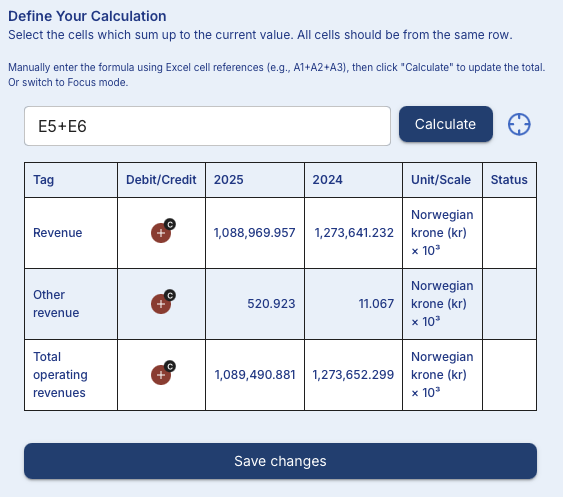
Where it matters is in calculations. The weight determines whether a line item is added or subtracted when calculating a total:
- +1: The item is added to the total (same direction as the total’s balance type).
- –1: The item is subtracted from the total (opposite direction).
**Example — Income Statement:**
| **Line Item** | **Balance Type** | **Weight** | **Why?** |
| --- | --- | --- | --- |
| Revenue | Credit | +1 | Adds to profit |
| Cost of Sales | Debit | –1 | Subtracted from revenue |
| Gross Profit (total) | Credit | | = Revenue – Cost of Sales |
| Operating Expenses | Debit | –1 | Subtracted from gross profit |
| Operating Profit (total) | Credit | | = Gross Profit – OpEx |
**Tip:** If a calculation shows red or yellow after validation, the most common cause is a wrong weight. Check whether the line item should be +1 or –1 relative to the total.
##### **Subtag (Dimension)**
While tags identify what is being reported (e.g., “Equity”), subtags add a layer of detail by specifying a particular breakdown within that concept.
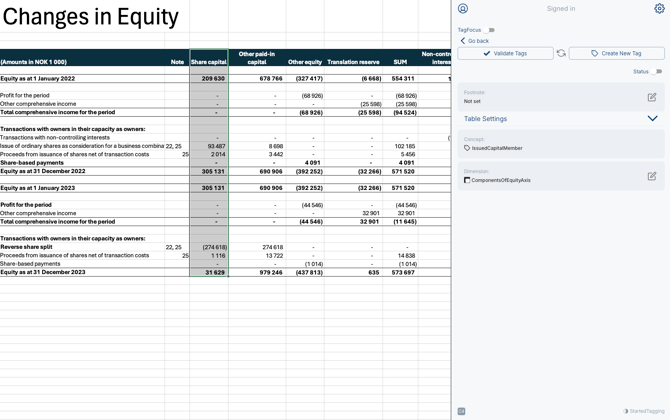
**Example — Statement of Changes in Equity:** In the equity table, each row has a tag (e.g., “Increase/decrease in equity”). But the columns represent different equity components — Issued Capital, Share Premium, Retained Earnings, etc. Subtags are applied to these columns to distinguish between the components. The total equity column has no subtag because it represents the aggregate.
In XBRL terminology, subtags are called “dimensions,” made up of two parts:
- Axis: The type of breakdown (e.g., “Components of equity \[axis\]”).
- Member: A specific value within that axis (e.g., “Issued capital \[member\]”).
You’ll see axis and member labels in XBRL viewers and audit reports. In the Drafts tagger, these are simply called subtags.
**Tip:** Currently in ESEF tagging, subtags are primarily used in the Statement of Changes in Equity. With future CSRD reporting, dimensions will become more prominent across other parts of the report.
##### **Item Types**
In the Item Details panel, you’ll see type badges that tell you what kind of data a tag expects:
| **Item Type** | **What it means** | **Example** |
| --- | --- | --- |
| monetaryItemType | A currency amount | Revenue, Total Assets |
| stringItemType | Free text | Description of accounting policy |
| booleanItemType | True or false | Whether owners can amend statements |
| dateItemType | A date | Date of authorisation for issue |
| perShareItemType | An amount per share | Earnings per share |
| pureItemType | A dimensionless number (ratio, %) | Percentage of ownership |
| textBlockItemType | A block of narrative text | Disclosure notes |
**Tip:** You don’t choose the item type yourself — it’s defined by the tag in the taxonomy. But knowing what type a tag expects helps you verify you’re applying the right tag to the right data.
##### **Abstract Elements**
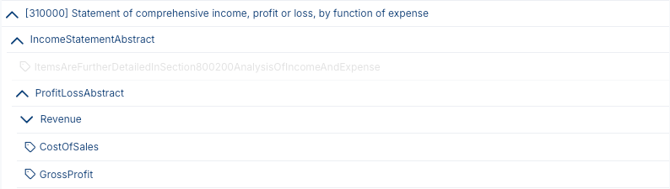
When browsing the tag list, you’ll see entries like “IncomeStatementAbstract” or “AssetsAbstract.” These are structural elements that organize the taxonomy into logical groups — think of them as folder headings.
You cannot apply an abstract to your data. They exist only to group related tags together in the list. When you expand an abstract, you’ll see the actual tags you can use underneath it.
**Can’t find a term?** Contact support and we’ll help you understand it in the context of your report.
- [General](https://wrepit.net/help-center/general?hsLang=en-us#main-content)
- [Excel](https://wrepit.net/help-center/general?hsLang=en-us#excel)
- [PDF](https://wrepit.net/help-center/general?hsLang=en-us#pdf)
- [Word](https://wrepit.net/help-center/general?hsLang=en-us#word)
- [Reports](https://wrepit.net/help-center/reports?hsLang=en-us#main-content)
- [Document Setup](https://wrepit.net/help-center/reports?hsLang=en-us#document-setup)
- [Tables](https://wrepit.net/help-center/reports?hsLang=en-us#tables)
- [Publishing](https://wrepit.net/help-center/reports?hsLang=en-us#publishing)
- [Design Elements](https://wrepit.net/help-center/reports?hsLang=en-us#design-elements)
- [Export](https://wrepit.net/help-center/reports?hsLang=en-us#export)
- [XBRL](https://wrepit.net/help-center/xbrl?hsLang=en-us#main-content)
- [Setting up your taxonomy](https://wrepit.net/help-center/xbrl?hsLang=en-us#setting-up-your-taxonomy)
- [Tagging your report](https://wrepit.net/help-center/xbrl?hsLang=en-us#tagging-your-report)
- [Reference and troubleshooting](https://wrepit.net/help-center/xbrl?hsLang=en-us#reference-and-troubleshooting)
- [Account](https://wrepit.net/help-center/account?hsLang=en-us#main-content)
- [Access](https://wrepit.net/help-center/account?hsLang=en-us#access)
- [Users and Roles](https://wrepit.net/help-center/account?hsLang=en-us#users-and-roles)
- [Integrations and Add-ins](https://wrepit.net/help-center/integrations-and-add-ins?hsLang=en-us#main-content)
- [Excel2Word (Word add-in)](https://wrepit.net/help-center/integrations-and-add-ins?hsLang=en-us#excel2word-word-add-in)
- [Drafts (Word add-in)](https://wrepit.net/help-center/integrations-and-add-ins?hsLang=en-us#drafts-word-add-in)
- [Troubleshooting](https://wrepit.net/help-center/troubleshooting?hsLang=en-us#main-content)
- [Word](https://wrepit.net/help-center/troubleshooting?hsLang=en-us#word)
- [Drafts Word](https://wrepit.net/help-center/troubleshooting?hsLang=en-us#drafts-word)
- [Sign-in and access](https://wrepit.net/help-center/troubleshooting?hsLang=en-us#sign-in-and-access)
- [Drafts Excel](https://wrepit.net/help-center/troubleshooting?hsLang=en-us#drafts-excel)
- [Getting started](https://wrepit.net/help-center/getting-started?hsLang=en-us#main-content)
- [Getting started for new users](https://wrepit.net/help-center/getting-started?hsLang=en-us#getting-started-for-new-users)
[mailto:email@email.com](mailto:email@email.com)
Copyright © 2025, Wrepit