
Jump to a section:
| How Validation Works · Severity Levels · Document vs Fact Level Sign & Value Warnings · Calculation Inconsistencies · Duplicate Fact Issues Missing & Unused Tags · Extension Taxonomy Issues · Entity & LEI Errors Dimension Errors · Package & Format Errors · Quick Reference |
How Validation Works
Wrepit uses Arelle, the industry-standard open-source XBRL validator, to check your report against two sets of rules:
XBRL core rules ensure the technical structure of your tagged data is valid (calculations add up, contexts are correct, required elements are present).
ESEF-specific rules check compliance with ESMA’s Regulatory Technical Standards (element naming, anchoring, report package structure, and more).
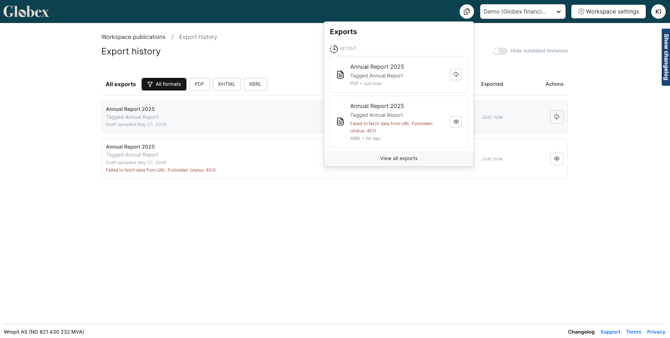
Validation runs automatically when you generate an export. Results appear in the Portal’s export view, where each message is marked as an error or a warning.
Severity Levels
| Icon | Meaning | Where you'll see it |
 |
Error |
Your filing will be rejected. You must fix this before submitting to your regulator. |
 |
Warning |
Your filing can still be submitted, but you should review this. It may indicate a real issue or just a harmless rounding difference. |
 |
Inconsistency |
Portal validation report |
When your report has no errors, warnings, or inconsistencies, the export download interface turns green, meaning your report is ready for submission.
Of the hundreds of validation rules in the ESEF taxonomy, only a small number are classified as blocking errors. The rest are warnings and inconsistencies.
Document-Level vs Fact-Level Issues
The Portal displays validation results at two levels:
Document-Level Issues
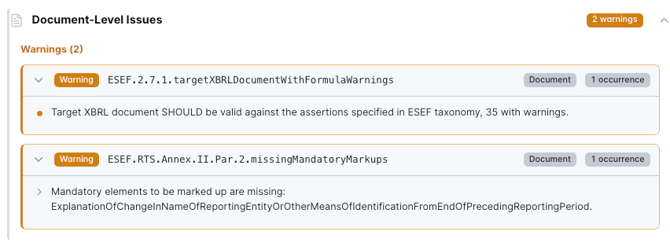
These are overall issues that apply to the report as a whole. They appear as a summary list at the top of the validation results. Examples include missing entity identification tags, report package structure problems, or taxonomy setup errors.
Document-level issues give you the big picture: is the report structurally sound? Are the required elements in place? Start here to catch fundamental problems before diving into individual facts.
For example, you might see:
|
Warning Target XBRL document SHOULD be valid against the assertions specified in ESEF taxonomy, 4 with warnings. |
This is a summary message. It tells you the report has 4 formula-based warnings, but does not say which tags are affected.
You do not need to act on document-level issues directly. They will usually resolve themselves once you fix the underlying fact-level issues.
Fact-Level Issues
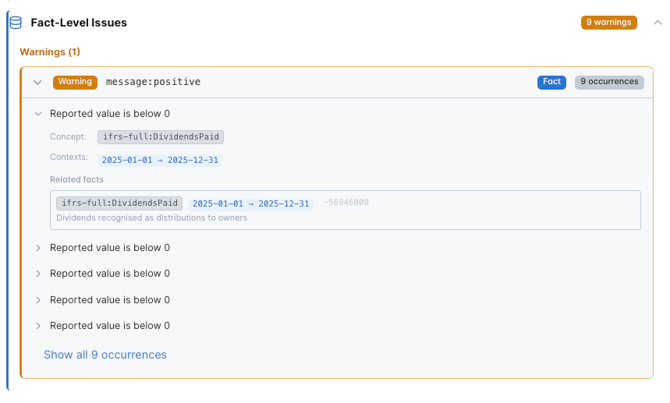
These break down each error or warning to a specific tagged value in your report. A fact-level issue tells you exactly which concept, period, and value triggered the message, making it easier to locate and fix the problem in the tagger.
For example, a document-level message might say there are calculation inconsistencies in the income statement. The fact-level breakdown then shows you exactly which line items don’t add up and by how much.
For example, a fact-level issue might look like this:
|
Warning Reported value is below 0 |
This tells you a specific tagged value is negative. You can expand it to see which concept and period are affected, then find that tag in the tagger to review the sign.
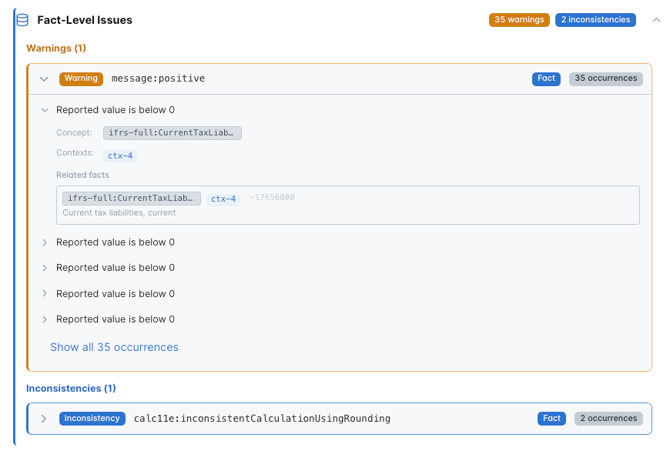
Always go to fact-level issues to find and fix problems. Document-level issues are just a summary, they will usually resolve themselves once the underlying fact-level issues are addressed.
Calculation Inconsistencies
The most common validation message. Appears when tagged values don’t add up according to the calculation relationships defined in the IFRS taxonomy.
|
Inconsistency Calculation inconsistent from ifrs-full:[Concept] in link role ... reported sum [x, y] computed sum [a, b] |
The sum of the child items does not match the reported total. The message shows the reported sum (what you tagged) vs the computed sum (what the child items add up to).
Most common cause: rounding. If your report rounds to thousands or millions, small differences are expected and acceptable. If the difference is large, check that all contributing line items are tagged and that signs are correct.
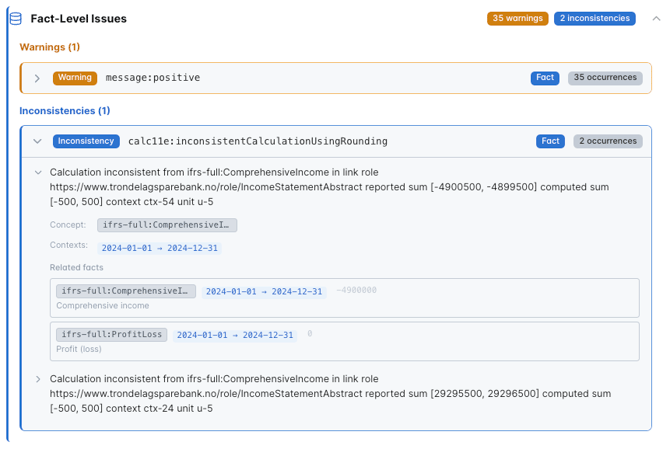
Not all calculation inconsistencies are harmless rounding. If the difference is large (more than a few units in your rounding scale), double-check that:
(1) all contributing line items are tagged,
(2) signs are correct (see next section),
(3) the correct tag was selected for each line item.
Sign & Value Warnings
In XBRL, a value’s sign (positive or negative) is determined by the tag definition, not how it appears in your report. This is a common source of confusion.
|
Warning Reported value is below 0 |
The tagged value is negative, which may be unexpected for this concept. Some tags expect positive values even when displayed as a deduction in the report (e.g., Cost of Sales).
Review: Check the tag’s balance type (credit/debit) in the Tag Wizard. If the value should be negative (e.g., negative equity), acknowledge the warning. Otherwise, flip the sign in the tagger.
XBRL defines a tag’s sign by its balance type. A Credit tag (like Revenue) expects a positive value. A Debit tag (like an expense) also expects a positive value, the sign represents the amount, not whether it’s a gain or loss. The calculation weight (+1 or –1) handles how items combine in totals.
See the XBRL Glossary for more on credit, debit, and weight.
Duplicate Fact Issues
Some financial values legitimately appear in more than one financial statement. For example, Profit (loss) may appear in the income statement, the statement of changes in equity, and the cash flow statement. Each occurrence should be tagged with the same concept and the same value.
|
Error Inconsistent duplicate numeric facts found. |
The same concept is tagged in multiple places with different values for the same period. This is a blocking error because there is no way to know which value is correct
Example: Profit (loss) is tagged as 15,000 in the income statement but as 14,500 in the changes in equity. Since both use the same concept and period, the values must match. Correct the value in one of the statements, or check if the wrong tag was applied.
Fix: Ensure all occurrences of the same fact use identical values. If the numbers differ due to rounding, use the same rounded value everywhere.
Common cause: a line item like Profit (loss) appears in both the income statement and the changes in equity, but has been tagged with different values. This can happen when the statements were prepared independently or when rounding was applied differently.
Also note: using the exact same tag twice on the same value in the same table is not allowed. Each value should have exactly one tag.
|
Warning Inconsistent duplicate facts found for [concept] |
The same concept appears multiple times with identical values in the same context. Can generate a large number of occurrences (46+). This is not blocking, but indicates redundant tagging.
Review: Check if the same value has been tagged more than once in the same table. If the concept legitimately appears across different statements (e.g., Profit (loss) in both income statement and cash flow), having it tagged in both places with the same value is expected — but exact duplicates within the same table should be removed.
Date & Period Errors
XBRL is precise about dates. Instant facts (balance sheet items) use a single date; duration facts (income statement, cash flow) use a start and end date.
|
Error Context period type mismatch for [concept] |
An instant tag was given a duration period, or a duration tag was given an instant period.
Fix: In the Tag Wizard, check that balance sheet items use Instant (a single date) and income statement / cash flow items use Period (start and end date).
|
Warning Period dates do not match reporting period |
The tagged period does not align with the report’s fiscal year or comparison period.
Fix: Verify that Start Date and End Date in the tagger match your fiscal year exactly (e.g., 2024-01-01 to 2024-12-31).
Missing Mandatory Tags
ESMA defines a list of tags that are mandatory for every ESEF filing (Annex II of the RTS). However, many of these tags only apply in specific situations, so this warning appears in virtually every filing.
|
Warning Mandatory elements to be marked up are missing: ExplanationOfChangeInNameOfReportingEntityOrOtherMeansOfIdentificationFromEndOfPrecedingReportingPeriod |
Your report is missing one or more tags from ESMA’s mandatory list. This warning is expected in most filings because the mandatory list includes tags for situations that may not apply to your company.
Example: The tag ExplanationOfChangeInNameOfReportingEntity is mandatory, but only relevant if your company actually changed its name. If it didn’t, this warning can be safely ignored.
Review the list of missing mandatory tags, but don’t worry if they refer to disclosures that are not relevant to your company. Only add tags for information that actually exists in your report.
Package & Format Errors
These relate to the structure and contents of the exported ZIP file. Wrepit generates the package automatically, so these are rare.
|
Error |
The inline XBRL document does not pass structural validation. This can be caused by issues in the source documents that carry through to the export.
Fix: Try re-exporting from the Portal. If the error persists, contact support.
If your browser adds “(1)” or similar to the file name when downloading, rename the file to remove the suffix before submitting to your regulator.
Quick Reference
|
Portal Message Code |
Severity |
Where to Fix |
|
message:positive |
Warning |
Tag Wizard (check sign) |
|
calc11e:inconsistentCalculationUsingRounding |
Inconsistency |
Review rounding / tags |
|
message:tech_duplicatedFacts |
Warning |
Align duplicate values |
|
xbrl.5.2.5.2:contextPeriodType |
Error |
Tag Wizard (instant/period) |
|
ESEF.3.3.1.extensionConceptsNotAnchored |
Error |
Tag Wizard (set anchors) |
|
ESEF.3.2.1...DoesNotFollowLc3 |
Warning |
Contact support |
|
ESEF.2.1.x (LEI errors) |
Error |
Taxonomy Setup |
|
ESEF.2.1.4.missingRequiredElements |
Error |
Taxonomy Setup / tagger |
|
ESEF.2.6.1.reportIncorrectlyPlacedInPackage |
Error |
Re-export from Portal |
|
ESEF.2.5.1.executableCodePresent |
Error |
Re-export; contact support |
|
ESEF.2.5.1...ImageNotBase64 |
Warning |
Re-export from Portal |
|
ESEF.2.7.1...FormulaWarnings |
Warning |
Fix fact-level issues |
Related articles