---
title: Upload reports directly from Word using the Drafts add-in
description: Upload reports directly from Microsoft Word by connecting your document to the Wrepit portal using the Drafts add-in
---
[Skip to content](https://wrepit.net/help-center/upload-reports-directly-using-drafts#main-content)
English - United States
Show submenu for translations

Open main navigation
Close main navigation
- English - United States
Show submenu for translations
- Contact us
Contact us
Hi, how can we help you?
- There are no suggestions because the search field is empty.
1. [Help Center](https://wrepit.net/help-center?hsLang=en-us)
2. [Integrations and Add-ins](https://wrepit.net/help-center/integrations-and-add-ins?hsLang=en-us)
3. [Drafts (Word add-in)](https://wrepit.net/help-center/integrations-and-add-ins?hsLang=en-us#drafts-word-add-in)
# Upload reports directly from Word using the Drafts add-in
### **Before you start**
Make sure that:
- The Drafts add-in is installed
*(you should have received the installation guide before-hand)*
- You’re signed in with your Microsoft account
- The document has been **saved** (locally or on a server)
### **Learn how to connect to Drafts, upload and preview a report in 1 minute:**
### Guide
#### **How to connect a word document to the Portal**
1. Go to the Wrepit portal: **portal.wrepit.net**.
2. Create a new publication and click **Connect to Drafts**.
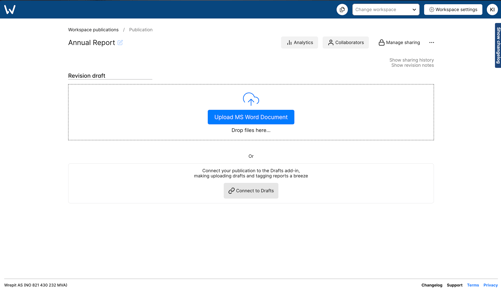
3. Copy the **Publication ID**.
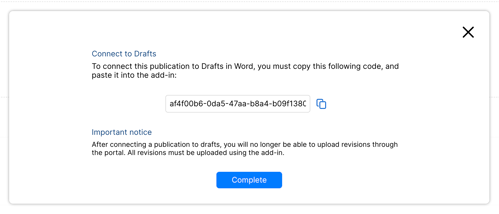
4. Open your document in **Microsoft Word**.
5. Open the **Drafts** add-in.
6. Paste the Publication ID into the input field and click **Submit**
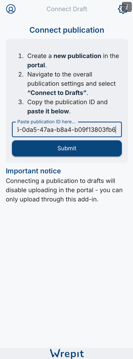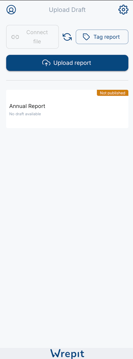
The document is now connected to the publication.
#### **How to upload your word document to the Portal**
1. Click **Upload report**.
2. The add-in is processing and uploading the word doc
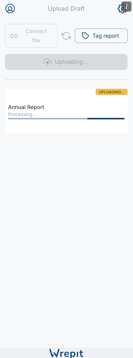
3. You’ll be notified whether the upload was successful.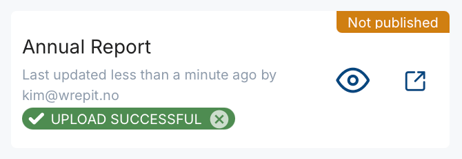
Once the upload is complete, the report will be available in the Wrepit portal.
You can then:
\- Click **the eye icon** to open a **preview** of the web report in your browser.
\- Click the **external link icon** to open the Publication Draft in the browser
*Tip: You must open the publication draft to see any errors or warnings in the report.*
#### **What happens after upload?**
- The document is uploaded to the selected publication.
- The existing draft is **replaced** each time you upload.
- You can still change theme and publish the report in the portal.
- You can no longer upload the document the old way unless you **disconnect the publication from Drafts**.
---
#### **How to disconnect a publication from Drafts:**
1. Go to the publication you would like to disconnect.
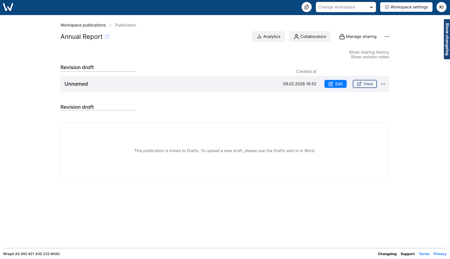
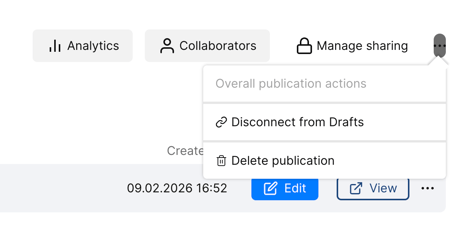
2. Click the meatball menu in the top-right corner, select "disconnect from Drafts" and confirm to disconnect.
---
### **Common questions**
#### Why am I not able to "connect file"?
This feature does not exist yet, but will eventually be available to all who have drafts installed.
#### What does the refresh button do?
If you have made changes within the document which have not been synced yet, you can force the sync by clicking refresh.
#### What does "Tag report" mean?
Tag report is a feature for those who are ESEF-tagging with Wrepit.
Please contact support if you need more information about tagging.

#### I am not able to successfully upload the document, what am I doing wrong?
First, confirm that your document starts with a Heading 1 style in Word. If it doesn’t, the upload will be blocked. If the first heading is correctly set to Heading 1 and the upload still fails, there is likely another issue in the document preventing upload, and you should contact Wrepit support for assistance.
- [General](https://wrepit.net/help-center/general?hsLang=en-us#main-content)
- [Excel](https://wrepit.net/help-center/general?hsLang=en-us#excel)
- [PDF](https://wrepit.net/help-center/general?hsLang=en-us#pdf)
- [Word](https://wrepit.net/help-center/general?hsLang=en-us#word)
- [Reports](https://wrepit.net/help-center/reports?hsLang=en-us#main-content)
- [Document Setup](https://wrepit.net/help-center/reports?hsLang=en-us#document-setup)
- [Tables](https://wrepit.net/help-center/reports?hsLang=en-us#tables)
- [Publishing](https://wrepit.net/help-center/reports?hsLang=en-us#publishing)
- [Design Elements](https://wrepit.net/help-center/reports?hsLang=en-us#design-elements)
- [Export](https://wrepit.net/help-center/reports?hsLang=en-us#export)
- [XBRL](https://wrepit.net/help-center/xbrl?hsLang=en-us#main-content)
- [Setting up your taxonomy](https://wrepit.net/help-center/xbrl?hsLang=en-us#setting-up-your-taxonomy)
- [Tagging your report](https://wrepit.net/help-center/xbrl?hsLang=en-us#tagging-your-report)
- [Reference and troubleshooting](https://wrepit.net/help-center/xbrl?hsLang=en-us#reference-and-troubleshooting)
- [Account](https://wrepit.net/help-center/account?hsLang=en-us#main-content)
- [Access](https://wrepit.net/help-center/account?hsLang=en-us#access)
- [Users and Roles](https://wrepit.net/help-center/account?hsLang=en-us#users-and-roles)
- [Integrations and Add-ins](https://wrepit.net/help-center/integrations-and-add-ins?hsLang=en-us#main-content)
- [Excel2Word (Word add-in)](https://wrepit.net/help-center/integrations-and-add-ins?hsLang=en-us#excel2word-word-add-in)
- [Drafts (Word add-in)](https://wrepit.net/help-center/integrations-and-add-ins?hsLang=en-us#drafts-word-add-in)
- [Troubleshooting](https://wrepit.net/help-center/troubleshooting?hsLang=en-us#main-content)
- [Word](https://wrepit.net/help-center/troubleshooting?hsLang=en-us#word)
- [Drafts Word](https://wrepit.net/help-center/troubleshooting?hsLang=en-us#drafts-word)
- [Sign-in and access](https://wrepit.net/help-center/troubleshooting?hsLang=en-us#sign-in-and-access)
- [Drafts Excel](https://wrepit.net/help-center/troubleshooting?hsLang=en-us#drafts-excel)
- [Getting started](https://wrepit.net/help-center/getting-started?hsLang=en-us#main-content)
- [Getting started for new users](https://wrepit.net/help-center/getting-started?hsLang=en-us#getting-started-for-new-users)
[mailto:email@email.com](mailto:email@email.com)
Copyright © 2025, Wrepit