
Before you start
Before exporting, confirm that:
- All financial tables are tagged and validated in Excel (no blocking errors).
- All text blocks and chapters are tagged in Word.
- Your Word document is connected to the correct publication in the Portal.
- Your taxonomy settings are correct (reporting period, LEI, export format).
Check your export format before your first export. The format (.xbri or .zip) is set in your taxonomy under Advanced Settings. The .xbri format is the current standard. The .zip format is a legacy option that was needed when Newsweb did not yet support .xbri files.
You can change the format at any time by editing your taxonomy settings.
Upload your report to the Portal
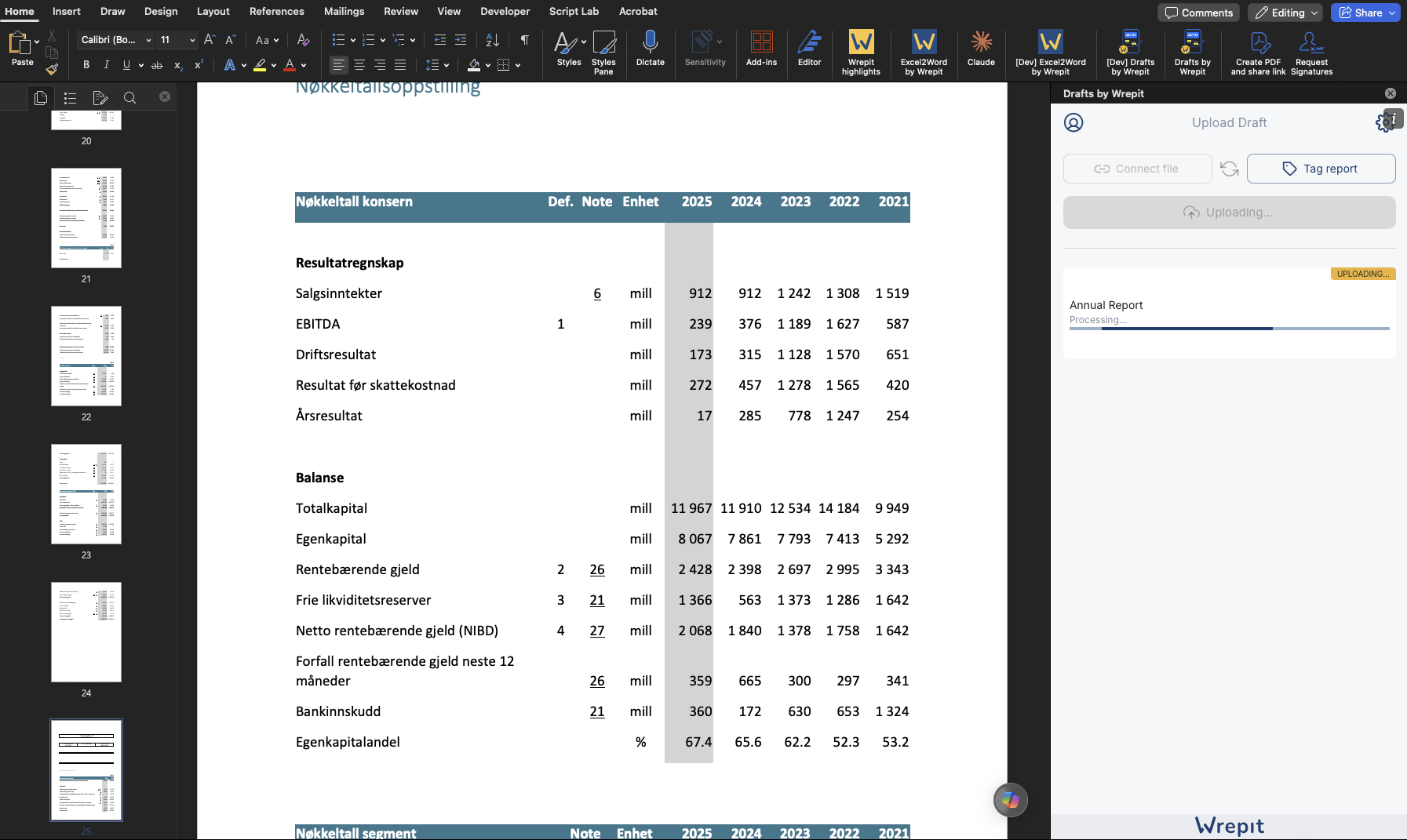
When your tagging is complete, upload the report from the Drafts Word add-in. This sends both the Word document and the connected Excel tagging data to the Portal.
After uploading, go to the Portal and open your publication.
Export your ESEF package
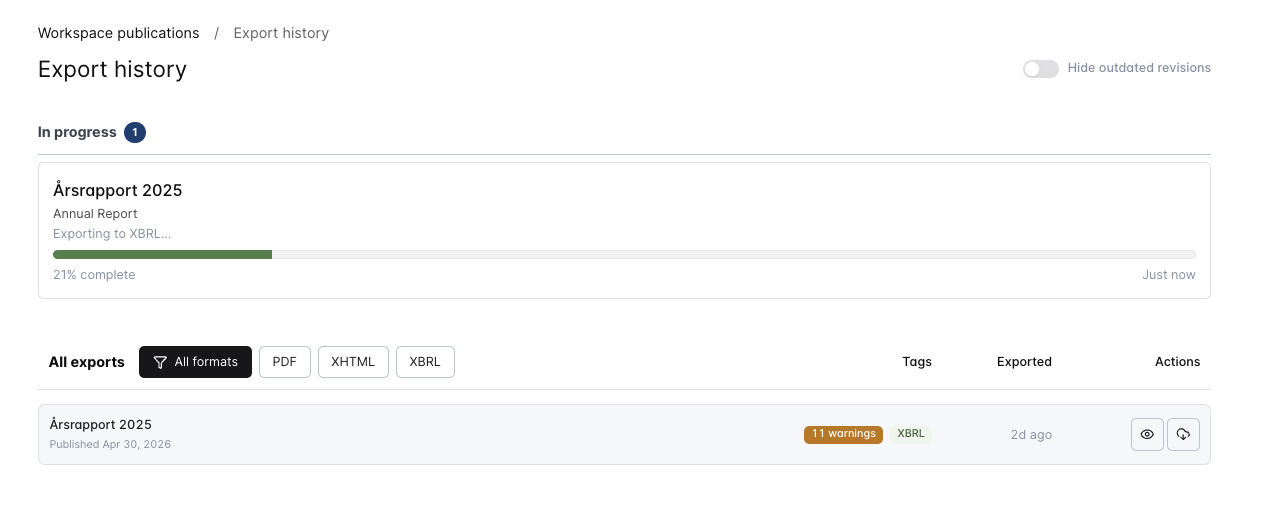
Once the report is uploaded, you can export the ESEF package from the Portal.
-
Open your publication draft
In the Portal, navigate to your publication and open the draft version. - Start the export
Click the … (more options) button on the draft, then select Export ESEF. - Wait for the compilation and validation
The Portal compiles your tagged data into an ESEF report and runs Arelle validation automatically. This may take a moment depending on the size of your report.
Review validation results
After the export completes, the Portal displays the validation results. This is the same validation interface you may have seen during the tagging process, with three tabs:
|
Errors |
Blocking. You must fix these before your export is valid for filing. |
|
Warnings |
Non-blocking. Review these, but they do not prevent filing. Some warnings are expected. |
|
Inconsistencies |
Calculation mismatches. Check whether the reported totals match the sum of their parts. |
If the validation shows no errors, the interface turns green and you can proceed to download your file.
The fix-and-reupload cycle
If the validation shows blocking errors, you need to fix them before you can use the export for filing. This is an iterative process:
- Identify the errors in the validation results. Switch to fact-level view to see exactly which tags or values are affected.
- Go back to Excel or Word (depending on where the issue is) and fix the tagging.
- Re-upload the report from the Drafts Word add-in.
- Export ESEF again in the Portal.
- Review the new validation results. Repeat until all blocking errors are resolved.
|
Note Plan for at least one or two fix-and-reupload cycles. This is a normal part of the ESEF process, not a sign that something has gone wrong. Some warnings (such as missing mandatory markups for disclosures that do not apply to your company) will appear every time. These are expected and do not need to be fixed. |
Download your ESEF file
Download your ESEF file
Once validation is clean (no blocking errors), you can download the exported file from the Portal.
The file format depends on what you selected when you created your taxonomy:
|
Format |
Description |
|
.xbri |
The current standard format for ESEF filings. Use this unless your filing authority requires .zip. |
|
.zip |
Legacy format. This was used when filing platforms (such as Newsweb) did not yet support .xbri files. Still available if needed. |
|
Tip The export format is set in your taxonomy under Advanced Settings. You can switch between .xbri and .zip at any time by editing your taxonomy — you do not need to re-tag anything. |
What happens next
After downloading your ESEF file, the typical next steps are:
- Send the file to your auditor. Your auditor will run their own validation and review the tagging. If they find issues, go through the fix-and-reupload cycle again, then re-export and re-send.
- File on Newsweb (or your local filing platform). Once the auditor has approved the export, upload the file to your filing platform. In Norway, this is Newsweb.
|
Caution Do not file until your auditor has validated and approved the export. Auditors may flag issues that the automated validator does not catch, such as incorrect tag choices or missing context. |