
In addition to viewing reports in the web viewer, you can export reports from the Wrepit portal in several formats, depending on your license.
-
PDF
-
XHTML
-
XBRL (ESEF tagging)
All export formats are generated from the same Word document uploaded to the portal.
Export history
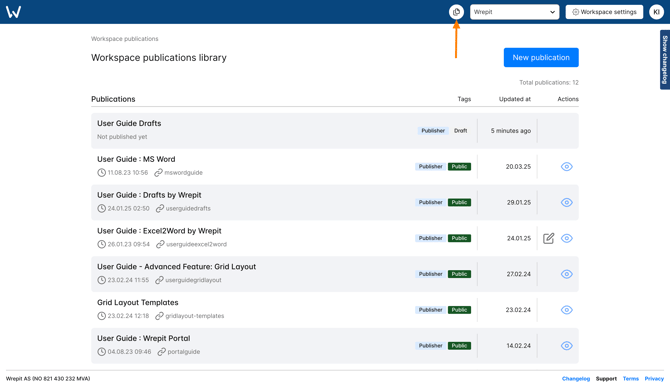
You can view all exports by clicking Exports in the top navigation bar.
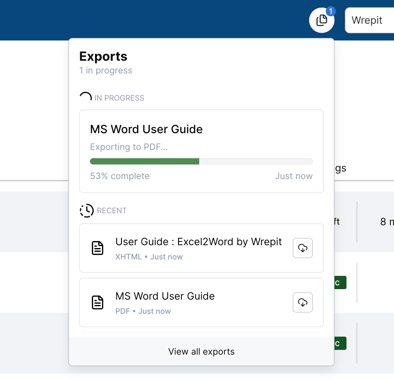 |
The exports panel shows:
|
Click View all exports to open the full export history, where you can:
-
Filter by export format
-
Show or hide outdated revisions (exports from older drafts that have since been replaced)
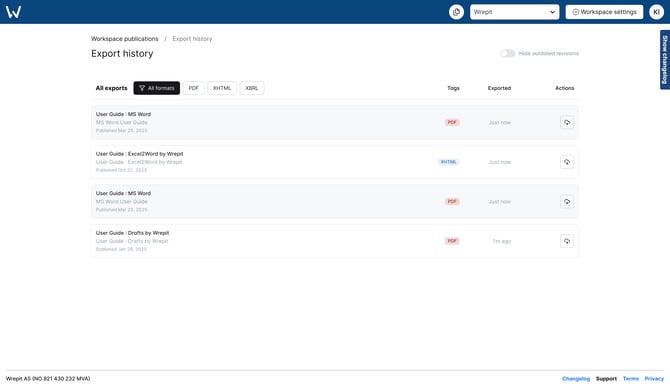
For XBRL exports, validation and export are also handled from this view..
What happens if I turn on "hide outdated revisions"?

If you’ve exported multiple PDFs or XHTML files from the same publication, but only want to see the most recent exports from the current active draft, turn on this toggle to hide exports from older drafts.
How to export PDF and XHTML
Once a draft has been uploaded to the portal, you can export it to any available format. You can export from two places.
-
Publication
From a publication, you can export:
-
Draft revisions
-
Active (published) revisions
-
Past revisions
In the workspace Publications library:
-
Click the name of the report you want to export.
-
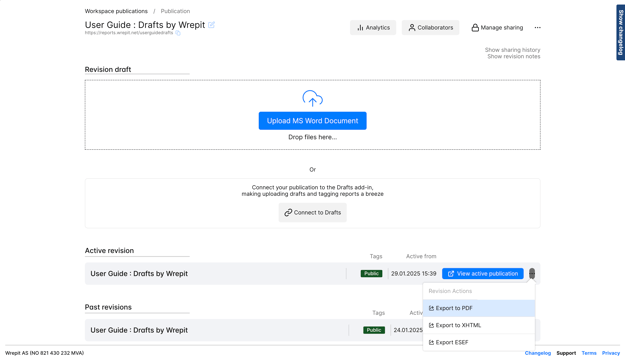
In the revisions list, click the ⋯ (more) menu next to the revision.
-
Select Export and choose PDF or XHTML.
The export will now start processing. You can track progress from the **Exports** panel or by opening the full export history.
-
-
Publication Drafts
When editing a publication draft:
-
Click the ⋯ (more) to the right of the Publish button.
-
Select Export and choose PDF or XHTML.
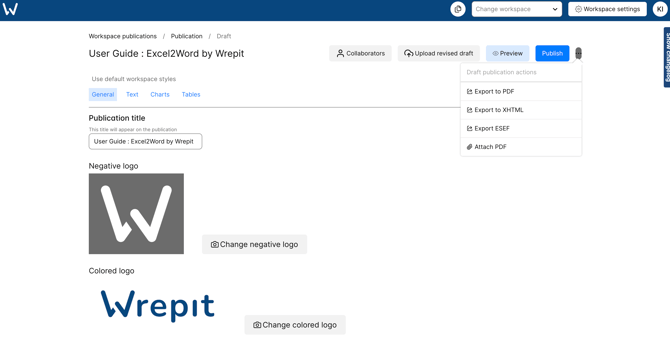
When the export is complete, you can download the file from the Export button in the top navigation bar.
Good to know
-
PDF and XHTML exports do not require validation.
-
Multiple exports can be processed at the same time.
-
Exported files remain available in the export history for download.