---
title: Table borders look uneven in PDF (Adobe Acrobat)
description: Table borders look uneven in Adobe Acrobat? Learn why this happens and how to fix or work around the issue in Wrepit.
---
[Skip to content](https://wrepit.net/help-center/borders-uneven-pdf-acrobat#main-content)
English - United States
Show submenu for translations

Open main navigation
Close main navigation
- English - United States
Show submenu for translations
- Contact us
Contact us
Hi, how can we help you?
- There are no suggestions because the search field is empty.
1. [Help Center](https://wrepit.net/help-center?hsLang=en-us)
2. [Reports](https://wrepit.net/help-center/reports?hsLang=en-us)
3. [Tables](https://wrepit.net/help-center/reports?hsLang=en-us#tables)
# Table borders look uneven in PDF (Adobe Acrobat)
If you’re viewing your exported PDF in **Adobe Acrobat**, you may notice that some table borders:
- Look uneven
- Appear thinner in certain columns
- Seem to disappear entirely
This is caused by how Adobe Acrobat renders thin lines in PDFs. The borders are not missing — they are displayed incorrectly by the viewer.
### **Why this happens**
Adobe Acrobat sometimes renders very thin table borders inconsistently at certain zoom levels. This can create the impression that lines are missing or have different thicknesses.
The issue is related to Acrobat’s rendering behavior, not the PDF export itself.
### **How to fix or work around it**
#### **Option 1: Use a different PDF viewer (recommended)**
Open the PDF in another viewer (for example, your browser’s built-in PDF viewer). In most cases, the table borders will appear correctly.
#### **Option 2: Apply a white background to default table rows**
If you need a workaround inside Wrepit:
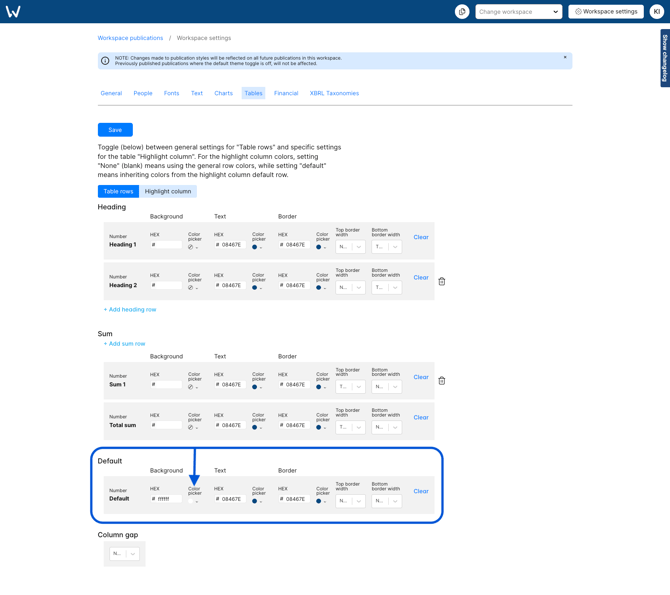
1. Go to **Workspace Settings**
2. Open **Tables**
3. Select **Default**
4. Set the background color to #ffffff (white)
### **Important**
Changing the default table background affects **all tables** in your workspace.
For example:
- Tables placed inside grids with background colors will no longer inherit the grid background.
- They will instead use the white background you defined.
Make sure this change fits your overall design before applying it, you can also use table settings on the specific tables in colored grids to override the white background color. This can reduce the visual rendering issue in Acrobat.
- [General](https://wrepit.net/help-center/general?hsLang=en-us#main-content)
- [Excel](https://wrepit.net/help-center/general?hsLang=en-us#excel)
- [PDF](https://wrepit.net/help-center/general?hsLang=en-us#pdf)
- [Word](https://wrepit.net/help-center/general?hsLang=en-us#word)
- [Reports](https://wrepit.net/help-center/reports?hsLang=en-us#main-content)
- [Document Setup](https://wrepit.net/help-center/reports?hsLang=en-us#document-setup)
- [Tables](https://wrepit.net/help-center/reports?hsLang=en-us#tables)
- [Publishing](https://wrepit.net/help-center/reports?hsLang=en-us#publishing)
- [Design Elements](https://wrepit.net/help-center/reports?hsLang=en-us#design-elements)
- [Export](https://wrepit.net/help-center/reports?hsLang=en-us#export)
- [XBRL](https://wrepit.net/help-center/xbrl?hsLang=en-us#main-content)
- [Setting up your taxonomy](https://wrepit.net/help-center/xbrl?hsLang=en-us#setting-up-your-taxonomy)
- [Tagging your report](https://wrepit.net/help-center/xbrl?hsLang=en-us#tagging-your-report)
- [Reference and troubleshooting](https://wrepit.net/help-center/xbrl?hsLang=en-us#reference-and-troubleshooting)
- [Account](https://wrepit.net/help-center/account?hsLang=en-us#main-content)
- [Access](https://wrepit.net/help-center/account?hsLang=en-us#access)
- [Users and Roles](https://wrepit.net/help-center/account?hsLang=en-us#users-and-roles)
- [Integrations and Add-ins](https://wrepit.net/help-center/integrations-and-add-ins?hsLang=en-us#main-content)
- [Excel2Word (Word add-in)](https://wrepit.net/help-center/integrations-and-add-ins?hsLang=en-us#excel2word-word-add-in)
- [Drafts (Word add-in)](https://wrepit.net/help-center/integrations-and-add-ins?hsLang=en-us#drafts-word-add-in)
- [Troubleshooting](https://wrepit.net/help-center/troubleshooting?hsLang=en-us#main-content)
- [Word](https://wrepit.net/help-center/troubleshooting?hsLang=en-us#word)
- [Drafts Word](https://wrepit.net/help-center/troubleshooting?hsLang=en-us#drafts-word)
- [Sign-in and access](https://wrepit.net/help-center/troubleshooting?hsLang=en-us#sign-in-and-access)
- [Drafts Excel](https://wrepit.net/help-center/troubleshooting?hsLang=en-us#drafts-excel)
- [Getting started](https://wrepit.net/help-center/getting-started?hsLang=en-us#main-content)
- [Getting started for new users](https://wrepit.net/help-center/getting-started?hsLang=en-us#getting-started-for-new-users)
[mailto:email@email.com](mailto:email@email.com)
Copyright © 2025, Wrepit