
How it works
Three things must match for the numbering and the links to work.
|
Where |
What must be in place |
|---|---|
|
Word |
Every note heading uses an auto-numbered note style, normally "Note lvl 2" |
|
Portal |
Workspace settings > Financial names the column title to link and the note style in use |
|
Excel |
The table has a column with exactly that title, holding the note numbers |
Wrepit takes each number in the Note column and looks for the note heading with the same number. When it finds one, the number becomes a link.
Step 1: Use the note styles on your note headings
The Wrepit template usually comes with up to three numbered note styles. You find them in the Styles pane in Word.
|
Style |
Based on |
Use it when |
|---|---|---|
|
Note lvl 1 |
Heading 1 |
Each note is a top-level section and should start on a new page |
|
Note lvl 2 |
Heading 2 |
The notes sit under a regular Heading 1 called "Notes". This is the most common setup |
|
Note lvl 3 |
Heading 3 |
The notes sit one level further down |
- Place the cursor in the note heading.
- Click the note style in the Styles pane.
- Type only the title, for example "Accounting principles". Word adds "Note 1" in front.
If you had typed "Note 1" by hand before, delete it. Otherwise the heading reads "Note 1 Note 1 Accounting principles".
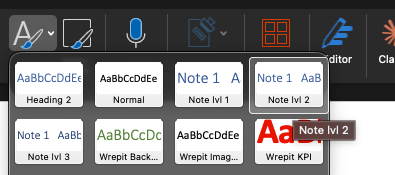
Step 2: Create the note style if it is missing
Skip this step if Note lvl 2 is already in your Styles pane and numbers correctly. The example uses Heading 2. Use Heading 3 instead if your notes sit one level down.
Create the style
- On a new line, type a note title, for example "Basis for accounting".
- In the Styles pane, click Heading 2.
- In the Styles pane, click Create a Style, then Modify.
- Fill in the dialog and click OK:
- Name: Note lvl 2
- Style based on: Heading 2
- Style for following paragraph: Normal
The style now exists, but it has no number yet.
Add the numbering
- Go to Home > Paragraph, open the Multilevel List dropdown and choose Define New Multilevel List.
- On the left, select the level to change. For a Heading 2 style this is level 2.
- If the document already has numbering, check every level and set "Link level to style" to (no style).
- For level 2, set "Link level to style" to Note lvl 2.
- Set "Number style for this level" to 1, 2, 3.
- In the number format field, type "Note " in front of the number, so it reads "Note 1".
- Set "Start at" to 1.
- Set "Restart list after" to Level 1.
- Click OK.
Your heading now reads "Note 1 Basis for accounting".
On Mac the buttons sit in other places but carry the same names. You reach the numbering from the Modify Style dialog: Format > Numbering > Customize.
This setup can remove the numbering from your ordinary Heading 1, 2 and 3. If that happens, click inside a Heading 1 and apply the multilevel list again from Home > Paragraph > Multilevel List.
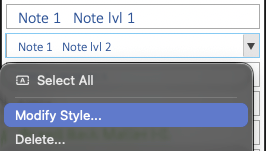
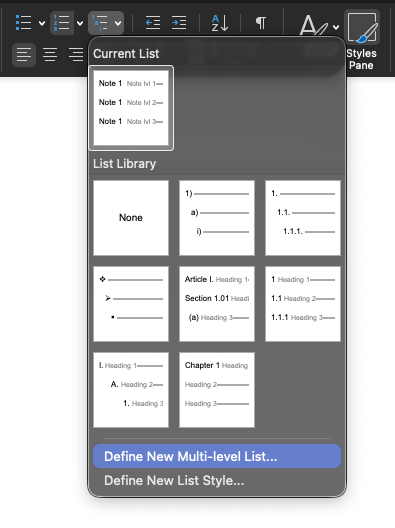
Step 3: Link the note references in your tables
- In the portal, open Workspace settings > Financial.
- Enter the title of the column that holds your note references. This is usually "Note", "Notes" or "Noter".
- Choose the note style you use for the headings, normally Note lvl 2.
- In Excel, check that the income statement, balance sheet and other tables have a column with exactly that title, and that it holds the note numbers.
- Synchronise in Excel2Word and upload the Word file again.
Wrepit now links each number in that column to the note heading with the same number.
Screenshot: Workspace settings > Financial with the column title and the note style filled in.
Troubleshooting
The note headings have the right style but no number
Why: The style exists, but the numbering is not linked to it.
Fix: Right-click the style in the Styles pane and choose Modify. Go to Format > Numbering and open the customize option. Check that the level is linked to your note style, that the number format reads "Note 1" and that it starts at 1. If the numbering is missing altogether, follow "Add the numbering" in Step 2.
The portal shows the warning "Empty section reference"
Why: Wrepit found a number in the Note column but no note heading with that number.
Fix: Check these three things in order.
- The note headings are numbered automatically by Word. A "Note 1" typed by hand does not count.
- Every number used in the Note column exists as a note in the document.
- The style chosen in Workspace settings > Financial is the style your note headings use.
The note numbers are not links
Why: The column title in Excel does not match the title entered in the portal.
Fix: Compare the column title in Excel with the one in Workspace settings > Financial. They must be spelled the same way.
A second set of notes continues the numbering instead of starting at 1
Why: The numbering restarts only after a heading on the level above. This matters when a report has both group notes and parent company notes.
Fix: Place a Heading 1 before the second set of notes, and check that "Restart list after" is set to Level 1 in the multilevel list.
My ordinary headings lost their numbers
Fix: Click inside a Heading 1 and apply the multilevel list again from Home > Paragraph > Multilevel List.
Still stuck?
Send the Word file to support@wrepit.no and tell us which publication it belongs to. Include a screenshot of the warning in the portal if there is one.